Kamis, 23 Juni 2011

Asimo


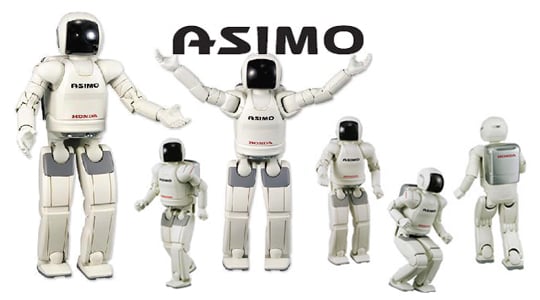
ASIMO is a humanoid robot created by Honda. Standing at 130 centimeters (4 feet 3 inches) and weighing 54 kilograms (119 pounds), the robot resembles a small astronaut wearing a backpack and can walk or run on two feet at speeds up to 6 km/h (3.7 mph), matching Hitachi's EMIEW.

Development

ASIMO was created at Honda's Research & Development Wako Fundamental Technical Research Center in Japan. It is the current model in a line of twelve that began in 1986 with E0. ASIMO resembles a child in size and is the most human-like robot HONDA has made so far. The robot has 7 DOF (Degrees of freedom) in each arm — two joints of 3 DOF, shoulder and wrist, giving "Six degrees of freedom" and 1 DOF at the elbow; 6 DOF in each leg — 3 DOF at the crotch, 2 DOF at the ankle and 1 DOF at the knee; and 3 DOF in the neck joint. The hands have 2 DOF — 1 DOF in each thumb and 1 in each finger. This gives a total of 34 DOF in all joints. Honda will not confirm how much it costs.

Name

The name is an acronym for "Advanced Step in Innovative MObility". Online magazine, The Future Of Things (TFOT), states that Honda did not name the robot in reference to science fiction writer and inventor of the Three Laws of Robotics, Isaac Asimov. The name ASIMO is also a pun meaning “feet, too”. アシ (ashi) is commonly translated as “feet” but can also refer to the lower leg from the knee down and モ (mo) is a particle meaning “also” or “too”, thus ASIMO  roughly translated can mean “it has feet, too” as is appropriate for a robot with legs. The transliteration of アシモ as “asimo” uses the Kunrei system of romanization rather than the more familiar Hepburn system of romanization which renders it as “ashimo”. In both cases it should be pronounced “ah she moh” to match the original Japanese pronunciation.
As of February 2009, there are over 100 ASIMO units in existence

Recognition technology

With 2000's ASIMO model Honda added features that enable ASIMO to interact better with humans. These features fall under 5 categories:

  • Moving objects

Using the visual information captured by the camera mounted in its head, ASIMO detects the movements of multiple objects, assessing distance and direction. Common applications of this feature would include: the ability to follow the movements of people with its camera, to follow a person, or greet a person when he or she approaches.

  • Postures and gestures

ASIMO interprets the positioning and movement of a hand, recognizing postures and gestures. Because of this ASIMO can react to and be directed by not only voice commands, but also to the natural movements of human beings. This enables it to, for example, recognize when a handshake is offered or when a person waves and respond accordingly. It can also recognize movement directions such as pointing.

  • Environment

ASIMO recognizes the objects and terrain of its environment and acts in a way that is safe for both itself and nearby humans. For example, recognizing potential hazards such as stairs, and by stopping and starting to avoid hitting humans or other moving objects.

  • Distinguishing sounds

ASIMO's ability to identify the source of sounds has been improved, and it can distinguish between voices and other sounds. It responds to its name, faces people when spoken to, and recognizes sudden, unusual sounds such as that of a falling object or a collision, and faces in that direction. It can respond to questions, either by a brief nod, a shake of the head or a verbal answer.

  • Facial recognition

ASIMO can recognize faces, even when ASIMO or the human being is moving. It can individually recognize approximately 10 different faces. Once they are registered it can address them by name.

Network integration

Utilizing networks ASIMO can provide information and function better for various commercial applications such as reception. Its abilities fall under 2 categories:

  • Integration with user's network system

By connecting with a user's network ASIMO can offer many useful functions such as greeting visitors and informing personnel of the visitor's arrival by transmitting messages and pictures of the visitor's face and guide visitors to a predetermined location.

  • Internet connectivity

By accessing information via the Internet, ASIMO can become a provider of news and weather updates.


Read More

Kaspersky 2011

Kaspersky Labs continues to gain popularity in the security software industry, and it’s easy to see why. Kaspersky Anti-Virus 2011 continues the legacy of providing rock-solid security without sacrificing performance, making it one of the best antivirus software solutions available.
Kaspersky Anti-Virus is a comprehensive program, protecting users from a number of threats including bots, worms, Trojans, rootkits, spyware, viruses and other malware. More than just traditional virus scanning, the software includes advanced technologies implemented to detect and prevent new threats.
Some of the new features for 2011 include the new Desktop Security Gadget, System Watcher technology, and additional improvements throughout the software.
Scope of Protection 

As far as desktop antivirus software, Kaspersky Anti-Virus is as all-encompassing as they come. The software is designed to protect users from several angles, effectively detecting, preventing and removing all forms of malware. The antivirus software is equipped to protect users from traditional viruses, but also has advanced technology to protect from even new unknown threats. Furthermore, there are a couple of tools and web-specific features that Kaspersky includes that are normally only found in more comprehensive Internet Security Suites.
Effectiveness 

Kaspersky is known for their quick response to new viruses, and they’re often among the first to detect new viruses in the wild. One reason the software is so effective is because it is updated regularly and is proactively looking for new security threats. The malware landscape continues to change, and Kaspersky adjusts to address the threats.
One new feature worth noting is the System Watcher, which monitors and logs application activity and behavior. If something suspicious is detected, the software stops the process and informs the user. But more than just uncovering stealth threats, System Watcher can rollback your system and actually delete any malware that was created or spread in the process.
The software works in real-time, protecting you as you surf the web, download files, send and receive emails, and access files and documents. Third party testers and security organizations collectively approve and recommend the software as well. Kaspersky has received top marks in recent VB100 (Virus Bulletin 100%) tests, and certification from ICSA. AV Comparatives has awarded the software with an A+, and West Coast Labs has verified the software for anti-virus, anti-spyware, anti-Trojan, and anti-malware. Overall, this software is one of the most effective available, and has the experience and accolades to prove it.
Ease of Installation 

The software is available as a box copy, or you can download the software online and install immediately. The product includes three licenses, and the software works on laptops and netbooks as well. Installation is quick and straightforward, and doesn’t require a restart.
But what if your system is already infected to the extent that you can’t install antivirus software, or even start the computer? If you aren’t able to download the software because of malware, you have the option to download a specialized tool used to preemptively scan your PC and remove the threat to accommodate a clean install.
If your computer is dead, you’ll need the Backup and Rescue Disk, which you can either purchase or create yourself (so remember to do it before your computer dies). This bootable recovery disk can rescue your computer by booting prior to the OS to detect and remove malware, and is a great tool for emergencies.
Ease of Use 

This antivirus software is designed to be simple to use. The software has traditionally been geared towards expert users, but we’ve seen a definite shift to a consumer-level approach in the last few years. The advanced tools are still there (and still plenty strong), but beginners won’t be intimidated. Whether you’re an advanced user looking for intensive controls, or a laid-back user who simply needs protection without constant supervision, Kaspersky will work for you.

The interface is effectively organized and user-friendly. The interface features a color-coded graphic so you always know your security status (the traffic-light color-coded security status is actually bold enough that “at-a-glance" is an understatement; more like “can’t miss it”).
The dashboard is similar to last years’ interface, with left nav tabs and quick access to the quarantine, reports and settings. Accompanying icons and the graphical user interface add accessibility, and are applicable and appealing.
One of the best parts of this security program is that you can set your preferences and let it protect you without constantly monitoring it. Scans and updates are set by to occur automatically by default, and the software includes real-time security as you surf the web, download and open files, or communicate with email or IM. In the event of an infection or potential threat, the software immediately lets you know and provides quick access to identify and fix the problem so you can move on.
Features 

Of course even though the software is easy to use, it is also very customizable. Users can control just about every component of the software to schedule scans, adjust security levels, toggle specific features and even change the appearance of the software. There are several improved features and a couple new ones, all included with the intent to provide better security and overall performance.
Introduced last year, the Kaspersky URL Advisor continues to protect users while online. The browser plug-in is available for IE and Firefox, and stops you from navigating to infected websites. You’ll also be protected from phishing scams.
The software also still utilizes the proprietary iChecker and iSwift scanning technologies to keep you protected without hogging your resources. iChecker makes it possible for the software to identify files that have been opened or changed since the last scan, and only scan them, effectively speeding up scans. iSwift keeps an eye on resource usage and can throttle the resource demand as needed to optimize performance to run faster if the system is idle (or slower if you need the PC resources for other programs).

Some other continued features are the virtual keyboard and gamer mode. While the efficacy is debatable, the virtual terminal lets you input sensitive information (credit card numbers, passwords or other personal information) by clicking on the digital “keyboard” with your mouse. While it’s no way to type an essay, the virtual keyboard does avoid key loggers and keystroke recognition malware attempts to steal your information. The game mode makes it possible to enjoy full-screen video games (or movies) without interruptions.
One new feature that we’d like to highlight is the desktop security gadget. The sleek gadget docks on your desktop and provides better access and awareness to your system security at all times. The antivirus widget will change color if your security is at risk, and includes quick links to the most important aspects of the software. You can even drag and drop files directly to the gadget for an immediate manual scan. The buttons and even the appearance of the gadget can be changed (and if you don’t like it you can always disable it).
Updates 

Frequent updates are essential for effective antivirus and antispyware protection, so Kaspersky Anti-Virus updates on a regular basis for continual security. Updates run in the background automatically, and are frequent enough that they aren’t very big, so you shouldn’t notice any slowdown.
The software isn’t just equipped to keep itself up to date, but can also help you identify and locate essential updates for your system and other applications. The vulnerability scan checks for outdated drivers and can keep you on top of crucial security updates. The tool also identifies settings (like if your computer is set to autorun external media) that you might want to adjust for optimal security.
Help & Support

Kaspersky offers some great support for all of their product. Technical support comes in the form of a searchable online knowledgebase, FAQs, product manuals and an active form. You can easily access these resources online or from the program itself.
The software also includes context-sensitive helps. Not only are the included help files complete, but they open to information that corresponds with where you are in the software. For more personalized issues you can connect with a support team member over the phone or via online live chat.
Summary

Overall, Kaspersky Anti-virus 2011 continued to deliver superb protection and security. As one of the best antivirus software, it is robust and integrates innovative technologies to defend from even the newest threats. It’s a great option for protection and PC peace of mind.


Read More

Rabu, 22 Juni 2011

CCleaner

CCleaner


As you might know Windows has a tendency to get slower over time.
CCleaner is a tool designed to reduce this effect by deleting files that you don’t need and removing invalid entries in the registry. After running CCleaner you can expect to have a faster and more reliable computer, you’ll even get more disc space!

Lets start with the developers description of CCleaner:

CCleaner is a freeware system optimization and privacy tool. It removes unused files from your system – allowing Windows to run faster and freeing up valuable hard disk space. It also cleans traces of your online activities such as your Internet history. But the best part is that it’s fast (normally taking less than a second to run) and contains NO Spyware or Adware!
Sounds good, right? Lets have a closer look on what CCleaner actually cleans:

Temp files and similar from the following applications:

  • Internet Explorer
  • Recycle Bin
  • Clipboard
  • Windows Temporary files
  • Windows Log files
  • Recent Documents (on the Start Menu)
  • Run history (on the Start Menu)
  • Windows XP Search Assistant history
  • Windows XP old Prefetch data
  • Windows memory dumps after crashes
  • Chkdsk file fragments

Temporary files and recent file lists for the following applications:

  • Firefox
  • Opera
  • Safari
  • Media Player
  • eMule
  • Kazaa
  • Google Toolbar
  • Netscape
  • Microsoft Office
  • Nero
  • Adobe Acrobat Reader
  • WinRAR
  • WinAce
  • WinZip
and more…
You may also choose to clean:
  • Menu Order cache
  • Tray Notifications Cache
  • Window Size and Location Cache
  • User Assist history
  • IIS Log Files
  • Custom Folders
We do not recommend you choosing the last six them if you aren’t a advanced user
and know what you are doing.
What we think so far:
The list is long, but running CCleaner doesn’t take a lot of time. We have also experienced that we got more disc space to play with after deleting lots of temp files, if you have used your computer for
some time it isn’t unusual that CCleaner would delete several
gigabytes of crap. Remember to defrag your hard drive if this happens to you!
The registry cleaning:
CCleaner is designed from the ground to be safe and secure to use. It has
multiple levels of checks in place to ensure that it won’t delete any useful information or documents you may still need.


CCleaner is capable of cleaning the following entries from the registry:

  • File Extensions
  • ActiveX Controls
  • ClassIDs
  • ProgIDs
  • Uninstallers
  • Shared DLLs
  • Fonts
  • Help File references
  • Application Paths
  • Icons
  • Invalid Shortcuts and more…

Our Conclusion:

We have been using CCleaner for several months now, and we think that CCleaner is getting better and better by every program update. Did we mention that CCleaner got a auto update function? There is a new CCleaner release every month so remember to update CCleaner!
Cleaner is fast in use as long as you choose just to delete files, but if you choose the safe file deletion it takes much longer time, but this is normal as the files are overwritten several times. For normal users we would recommend just using the normal deletions method, but if you want your temp files to really be deleted, then go ahead, use the secure file deletion.
The registry cleaner part of CCleaner is not the best registry cleaner out there, but it’s good enough for a normal Windows user. Remember that this piece of software is free! Available in 35 different languages.

Read More

Autorun Remover

Recently, we have given them know more about the Autorun.inf
Many say that autorun.inf can not be deleted.
because it has a name reservation can not be used as a directory name. There are many names of directories that can not be used or deleted in the MS-DOS, such as CON, AUX, NUL, COM1, COM2, COM3, COM4, COM5, COM6, COM7, COM8, COM9, PRN, LPT1, LPT2, LPT3, LPT4, LPT5, LPT6, LPY7, LPT8, LPT9. Just try to make the folder name above.
Despite the fact there are many ways to remove it manually. Though somewhat difficult to use way.
Therefore, we provide software allows you to easy delete the autorun.inf

Read More

Selasa, 21 Juni 2011

Robot

What Is Robot ?


A robot is a mechanical contraption which can perform tasks on its own, or with guidance. In practice a robot is usually an electromechanical machine which is shown what to do by computer and electronic programming. Robots can be semi-autonomous and come in those two basic types: those which are used for research into human-like systems, such as ASIMO and TOPIO, and those for more defined and specific roles, such as nano and swarm robots; and helper robots which are used to make or move things or perform menial or dangerous tasks, such as industrial robots or mobile or servicing robots. Another common characteristic is that, by its appearance or movements, a robot often conveys a sense that it has intent or agency of its own.

History
When societies began developing nearly all production and effort was the result of human labour. As mechanical means of performing functions were discovered, and mechanics and complex mechanisms were developed, the need for human labour was reduced. Machinery was initially used for repetitive functions, such as lifting water and grinding grain. With technological advances more complex machines were slowly developed, such as those invented by Hero of Alexandria in the 4th century BC, and the first half of the second millennium AD, such as the Automata of Al Jazari in the 12th century AD. They were not widely adopted as human labour, particularly slave labour, was still inexpensive compared to the capital-intensive machines.
Men such as Leonardo Da Vinci in 1495 through to Jacques de Vaucanson in 1739, and rediscovering the Greek engineering methods, have made plans for and built automata and robots leading to books of designs such as the Japanese Karakuri zui (Illustrated Machinery) in 1796. As mechanical techniques developed through the Industrial age we find more practical applications such as Nikola Tesla in 1898, who designed a radio-controlled torpedo, and the Westinghouse Electric Corporation creation of Televox in 1926. From here we also find a more android development as designers tried to mimic more human-like features including designs such as those of biologist Makoto Nishimura in 1929 and his creation Gakutensoku, which cried and changed its facial expressions, and the more crude Elektro from Westinghouse in 1938.
Electronics then became the driving force of development instead of mechanics, with the advent of the first electronic autonomous robots created by William Grey Walter in Bristol, England, in 1948. The first digital and programmable robot was invented by George Devol in 1954 and was ultimately called the Unimate. Devol sold the first Unimate to General Motors in 1961 where it was used to lift pieces of hot metal from die casting machines in a plant in Trenton, New Jersey. Since then we have seen robots finally reach a more true assimilation of all technologies to produce robots such as ASIMO which can walk and move like a human. Robots have replaced manual labour in the performance of some repetitive and dangerous tasks in modern industrialized countries, and can perform tasks in environments where it is difficult for people to operate such as outer space and the deep ocean. They enable the performance of some tasks on previously impossible scales, both in terms of number of tasks performed precisely and in terms of the size of those tasks, both large and small (from micro-chip production to giant industrial machines).
Man has developed an awareness of the problems associated with autonomous robots and how they may act in society. Fear of robot behaviour, such as Mary Shelley's Frankenstein and the EATR, drive current practice in establishing what autonomy a robot should and should not have. Thinking has developed through discussion of robot control and artificial intelligence (AI) and how its application should benefit society, such as those based around Asimov's three laws. Practicality still drives development forwards and robots are used in an increasingly wide variety of tasks such as vacuuming floors, mowing lawns, cleaning drains, investigating other planets, building cars, in entertainment and in warfare.

Read More

Senin, 20 Juni 2011

BitDeffender 2011

If you’re looking for a security solution that is comprehensive yet comprehendible, BitDefender Antivirus Pro is the way to go. Offering rock-solid security, simple usability, effective resource usage and an enticing pricepoint, BitDefender Antivirus Pro 2011 is the best antivirus software on the market. The newest installment takes their established expertise to the next level with new features and advanced technology. More than just keeping your computer safe from threats, the antivirus software also helps to optimize your PC. Overall, it’s a top antivirus solution that offers superior protection, performance, and price.
Traditional viruses are showing no sign of slowing down, and new online threats continue to emerge and target different vulnerabilities. Luckily, this antivirus software continues to grow their arsenal to meet (and beat) the threats, whether they be viruses, worms, Trojans, or any other type of malware.
One of the best aspects of this software is that it is so flexible. Whether you’re an advanced user looking to control the whole process manually, or an average user who simply wants a set-and-forget solution, this software can match your workflow. Advanced users will love how robust the features are and the customization and overall control. Basic users will appreciate the fact that they can set up their preferences quickly and simply let the software protect them with little intervention.
In short, this security software provides protection and peace of mind, without upsetting your PC performance or paycheck.
Scope of Protection 

BitDefender Antivirus Pro protects you and your PC from a number of online threats, including viruses, spyware, phishing scams, and more. The software basically covers you from every angle, protecting you from threats on the internet, email, and even instant messaging. The program scans all web, IM, and email traffic for malware. The software is even equipped to encrypt your IM chat conversations.
One of the new features that further improves the scope of protection is the Search Advisor. This tool is built-in to the internet browser and provides protection while surfing online (similar to Norton Safe Web or McAfee SiteAdvisor) . It used to be that if you only clicked on the top links from a search engine result, you were pretty safe. With SEO-poisoning and targeted attacks (particularly on popular search terms), even the top results in Google can be dangerous. Enter Search Advisor. The tool provides at-a-glance icons next to each search result to let you know it’s safe before you click. Simply hover over the icon for more information. The little green checkmarks provide peace of mind, and don’t interfere with your internet speed or online experience. Most users will get used to them almost instantly.

Another feature designed with protection and performance in mind is the Active Virus Control. This feature was introduced last year and is specifically designed to detect and demolish stealth threats. The software has been using advanced heuristic detection for a while now, but new malware have taken steps to avoid being analyzed by these technologies. Active Virus Control uses proactive measures to continually monitor all application activity, keeping an eye on file behaviors that look suspicious. One minor discrepancy won’t stop the file in question (thus avoiding false-positives), but if enough malware-like actions are detected, BitDefender Active Virus Control will lock it down.
Effectiveness 

We Found the antivirus software to be extremely effective, successfully blocking, removing, neutralizing and (better yet) preventing malware infections. Third-party industry testers and reviewers (Virus Bulletin VB 100% Certification, ICSA Labs, Consumer Reports, West Coast Labs, AV-Comparatives) agree that BitDefender is one of the best on our comprehensive list of the top ten antivirus applications, and continue to award the company with certifications, approval and recommendation.

Another benefit of the software is that you can ensure security without sacrificing speed. The improved Smart Scan technology takes advantage of your PC processing power without being a burden. Depending on what other tasks you have running and what resources are available, BitDefender Antivirus Pro can adjust accordingly to optimize operations and maintain maximum speed.
Ease of Installation 

The software is available as boxed software or via online download, and both are easy to install and implement. Installation is actually very quick, and includes step-by-step instructions for initial setup. The process includes a pre-installation scan, and doesn’t require a reboot before you’re up and running.
Ease of Use 

One thing you’ll be prompted to choose during setup is which user profile you prefer (don’t worry, you can always change it later). The personal profiles and associated interfaces were introduced in last year’s version, and they’ve made them even better. They’re specifically designed to meet your level of experience and desired level of interaction. The basic interface focuses just on the essentials, and is ideal for anyone who just needs the software to work without constant supervision.

The intermediate and expert interfaces bring more advanced features to the forefront, allowing users to adjust security levels or tweak as needed. Though to be quite honest, even the expert user profile wouldn’t be confusing for most users, it just makes advanced features more accessible.
The antivirus software as a whole is well-designed and effectively organized. The new Windows 7-esque interface is sleek (aesthetic even), and features useful graphics and sensible tool-tips throughout the software. The dashboard varies for each user profile, but makes it easy to get in and do what you need, whether that is running a manual scan or update, scheduling a scan, customizing alerts, managing quarantined files, setting up a proxy connection or tweaking settings.
Features Product Feature ScoreProduct Feature ScoreProduct Feature ScoreProduct Feature Score

The best aspect of the software is its unmatched level of security, but there are also several features that back up the end goal of security while adding better performance, optimization, flexibility and general ease of use. The 2011 edition of our best antivirus software includes all the capabilities from the already powerful previous version, including the ability to configure (and actually use) a home network.

One special tool that is worth mentioning is the secure gamer mode. Whether you’re playing a video game or in full-screen mode for a presentation or video, the gamer mode turns off any interruptions, but doesn’t sacrifice security. You can even setup a list of your games or other applications that will require gamer mode for a completely automatic solution.
Another specialty mode available is the laptop mode. This feature can also be setup to run automatically, and will take special care to save resources when your laptop is unplugged.
Updates 

While the proactive heuristic detection and real-time prevention technology fight off new threats, timely virus definition updates are still an essential part of any antivirus software. BitDefender is set to perform updates automatically, and run in the background without slowing down your computer. You don’t have to manually update (though you can if you want), and more importantly, you don’t have to worry about updates slowing down your system.
Furthermore, you don’t have to worry about updates causing problems or losing program files. If file damage does occur (rare), BitDefender is setup to automatically repair itself with the newest working update.
Help & Support 

The top antivirus application is designed to be easy to use, and is fairly intuitive. But for those times when you need additional assistance or support with a specific problem, help is always close at hand. Live help is available 24/7 via phone, email or online live chat.

The software has helpful (but non-obtrusive) tips and directions scattered throughout the program, but the 2011 version also includes a specific in-product help application. The dedicated help section includes articles, a knowledgebase, help files, troubleshooting and a variety of video tutorials. Best of all, the integrated help is completely searchable, helping you locate relevant answers and information.
Summary

We’ve been impressed with BitDefender Antivirus for years, and they continue to innovate and improve year after year to maintain their status as the best antivirus software on our list of top ten antivirus programs. The software is well-balanced and provides all the essential security without some of the gimmicky features we’ve seen elsewhere. This year’s installment maintains security and speed while adding some new valuable features, including the improved Smart Scan and new Search Advisor.
Overall, BitDefender Antivirus Pro 2011 delivers proven protection that is effective, efficient, and affordable.


Read More

Kamis, 16 Juni 2011

Know More With Autorun.Inf

 Earlier we had read about what is autorun.inf Now we will tell you more about autorun.inf

Autorun.inf is the primary instruction file associated with the Autorun function. Autorun.inf itself is a simple text-based configuration file that tells the operating system which executable to start, which icon to use, and which additional menu commands to make available. In other words, autorun.inf tells Windows how to deal open the presentation and treat the contents of the CD.
The entire sequence is initiated when the "disk change notifcation" polling discovers a new disk in the CD or DVD ROM drive. Then, if the "Auto insert notification" feature is enabled (it is by default), Windows checks in the new disk's root directory for the existence of an "autorun.inf" file. If found, Windows then reads and follows the specific instructions this file defines. If no autorun.inf file is found, then Windows refers to the new disk by its serial number and executes the default actions associated with the (data or audio) content on the disk.
The Autorun.inf file defines the following:
Autorun.inf Defines the following: The process or application that will automatically run when a disk is inserted
Automatically run when CD is inserted Optionally, one can define the process or application that will run for specific Operating environments.
Icon Representing CD or DVD The icon that will represent your application's CD or DVD when the drive is viewed with My Computer or Explorer.
Menu Commands when CD-ROM is clicked Menu commands displayed when the user right-clicks the CD-ROM icon from My Computer or Explorer.

A simple Autorun.inf example:

[autorun]
  open=autorun.exe
  icon=autorun.ico
   
A complex Autorun.inf example:
This example is used in the following section for complete definition and descriptions.
  [autorun]
  open=filename.exe /argument1
  icon=\foldername\filename.dll,5
  [autorun.mips]
  open=filenam2.exe
  icon=filename.ico
  [autorun.alpha]
  open=filenam3.exe
  icon=filename.ico
  [autorun.ppc]
  open=filenam4.exe
  icon=filename.ico
  shell\install = &Install
  shell\install\command = setup.exe
  shell\uninstall = &UnInstall
  shell\uninstall\command = Uninstall.exe
  shell\readme = &Read Me
  shell\readme\command = notepad readme.txt
  shell\help = &Help
  shell\help\command = helpfilename.hlp

This section describes the configuration of the Autorun.inf file and each of the potential items.
Example Autorun File: Description:
[autorun] [autorun] is the primary, required section name.
open=filename.exe /argument1 Open is the keyword to determine what action to take upon insert notification.
filename.exe is the value defining the application that will be automatically started.
/argument1 is the argument, parameter or switch passed to the application being run. Logically, any command line parameters used must be supported by the application.
icon=\foldername\filename.dll,5 Icon is the keyword to determine the icon used for the disk.
filename.dll is the value defining the file containing the icon.
,5 is the argument to the icon resource defining which icon to display.
Note: By default, the system looks for the file in the root directory of the inserted disk. If you want to access a file located in a specific folder or subdirectory, specify a path relative to the root.
Example: open = foldername\filename.exe This will not change the current directory.
Although AutoPlay is the default menu item, you can define a different command to be the default by including the following line. shell = verb
When the user double-clicks on the icon, the command associated with this entry will be carried out.
Note: a more common method of defining the icon resouce is an explicit reference to a .ico file. Example: icon=autorun.ico
Note: The icon defined representing your application's CD or DVD is the drive icon as viewed with My Computer or Explorer. Valid file types containing icons include .ICO .BMP .EXE .DLL If the file includes more than one icon, by default, the second icon in the files icon resource will be displayed.

Example Autorun File: Description:
[autorun.mips] Defining the autorun items for a mips machine
open=filenam2.exe The platform specific application to run
icon=filename2.ico The platform specific autorun icon
[autorun.alpha] Defining the autorun items for a DEC Alphamachine
open=filenam3.exe The platform specific application to run
icon=filename3.ico The platform specific autorun icon
[autorun.ppc] Defining the autorun items for a Power PC
open=filenam4.exe The platform specific application to run
icon=filename4.ico The platform specific autorun icon
shell\install = &Install The Keyword defining a menu item and the Hot key for that item
shell\install\command = setup.exe The keyword defining the operation to perform when the user selects this item
shell\uninstall = &UnInstall Additional menu item example
shell\uninstall\command = Uninstall.exe Additional menu item example
shell\readme = &Read Me Additional menu item example
shell\readme\command = notepad readme.txt Additional menu item example
shell\help = &Help Additional menu item example
shell\help\command = helpfilename.hlp Additional menu item example
Read More

Rabu, 15 Juni 2011

What Is Autorun.Inf ?

 Autorun.inf, probably most of us already know what it is Autorun.inf, but I'm sure there are many who do not know or still less precise understanding of this autorun.inf file. This proved to us by people still often ask about autorun.inf virus, how to remove them and others.
This time will be discussed a little more deeply about the Autorun.inf, hopefully already know getting to know and who do not know started a little understanding of the autorun.inf, both structures were included, the benefits, hazards and how to turn off the autorun.inf.

    
Autorun or autoplay is a facility that works across operating systems run the file automatically when media such as CD-ROM, DVD-ROM, Flash disks and other insert / plug in the computer.
So when media is inserted, without us running any kind, there is a program that will automatically run itself. This feature is commonly used in the Driver CD that came when purchasing a motherboard / VGA. But today no doubt even be used as a media virus spreaders, especially from flash. Especially with the use of the flash that was like mushrooms in rainy season .. While the file Autorun.inf itself is a file that contains specific instructions about what is automatically executed when the media such as flash / CD is inserted into the computer. These instructions may include commands to run the exe file. Autorun.inf just a plain text file and can be opened with a text editor like notepad. There are lines of code that are common in it. There are actually several parts (Key) which can be written in the autorun, namely [Autorun], [Content], [ExclusiveContentPaths], [IgnoreContentPaths], and [DeviceInstall].
Read More

Selasa, 14 Juni 2011

Energy Efficient Technology Mobile Future


nokia technology, nokia charges energy with radio waves, nokia phones, nokia progress, cell phone technology, advancement in cell phones
Energy issues this decade became one of the world's attention after oil prices had skyrocketed and the availability of reserves are increasingly depleted. Various kinds of research eventually developed in order to search for alternative energy, do not miss the mobile phone manufacturers like Nokia.


Charging mobile phone by Air
nokia technology, nokia charges energy with radio waves, nokia phones, nokia progress, cell phone technology, advancement in cell phones

Recently, Nokia said that in the next few years, they will be able to charge mobile phones using radio waves that are all around us. The technology at the same time curious meyenangkan this could lead to a massive reduction in energy demand if all mobile phones in the world capable of doing a charge back from the air.
Hopefully, this will be enough to make cellular phone charged in standby mode, although at first may not be able to charge when the phone is in use, or to charge the battery up to full. Markku Rouvala, one of the researchers who create these devices, mengatalan "The trick is to ensure that these circuits use less power than the energy received." So far the device they were able to collect the energy of 5 mW, and short-term goals they are able to muster the energy to 20 mW, which is sufficient to charge the phone in standby mode. In the end, with the energy of 50 miliwatt is ideal and is able to slowly merecharge battery.

nokia technology, nokia charges energy with radio waves, nokia phones, nokia progress, cell phone technology, advancement in cell phones


This technology can also be applied to other gadgets such as to charge MP3 palyer, portable game player, or other handheld devices. Nokia also not rely entirely on this technology. They also are using solar cells (solar cells) in research on energy sources and mobile phones are expected within the next three years we could be able to see the results.


Charge Phone with Kinetic Energy


m2e power, kinetic energy, alternative energy, cell phone charger, green gadgets, geek gadgets

M2E ever build a power electronics technology utilizing motion (kinetic) for military purposes. Today they will use it for commercial applications are for a revolutionary mobile phone battery. This technology is claimed would produce 300 to 700 percent more power than kinetic energy technologies at the moment, and will eventually replace conventional cell phone batteries.


M2E technology is based on Faraday's principle, which is energy produced from the movement of a magnet through a coil. Their design consists of a generator coil / magnet petite combined with traditional battery storage that will accommodate even the low-frequency kinetic energy, so that almost all daily human motion will be converted into enough electricity to powers electronic devices such as mobile phones, Smartphones , or MP3 player.


M2E is currently applying this technology in other areas. The benefits of MEMS technology (MicroElectroMechanical Systems) is called will be very interesting and could be used widely. M2E also expect the kinetic-powered battery eventually will be able to compete with conventional battery cells - D, AA, and even AAA.It might take two years ahead until we can expect our mobile phones will be able to deduct only by putting himself in his pants pockets.
Read More

LG E90 Ultra Slim LED Monitor

Having announced this 21.5-inch LED-backlit monitor globally earlier, LG has launched it in India now. Among the highlights, are the full-HD resolution (1920x1080 pixels), 2ms response time, and lower power consumption as it uses an LED backlight (most LCDs use CCFL backlight instead). The "ultra slim" title of course, is because the LG E90 is claimed to be only 7.2 mm thick - less than one cm, which would make it the slimmest monitor in the market so far.


For connectivity to PC, the LG E90 offers DVI, HDMI and VGA input ports. The power socket and power supply for the monitor are placed behind its stand, which LG calls "EZ cabling". The E90 is claimed to be on display at the CES 2011 Innovations Awards, where it will be recognized as an "Honoree" product in the computer peripherals category. The LG E90 Ultra Slim 21.5-inch LED monitor will retail at Rs. 16,900; a price premium of about 50% over other LED monitors in the market.
"As always, we have tried to provide an innovative offering that would meet the need of the consumers through the advanced technology of LG E90. We are positive that the monitor's great features and design will set new benchmarks in the LED monitor segment," said Mr. R. Manikandan, Business Head - B2B, LG Electronics India Pvt. Ltd. "Also, recent recognitions at the market place reflect the acceptance that our products enjoy amongst consumers and motivate us further to come up with such new unique offerings."
Front Rear Side profile of the E90
The two images above show a front and rear profile respectively, of the LG E90. Notice how the video input connectivity ports are located at the rear, on the stand itself at the bottom, which is unusual. The image on the right hand side showcases a side profile of the monitor, which does look extremely thin.
Read More

Sabtu, 11 Juni 2011

2012 Release For Windows 8


At a Microsoft Developer Forum in Japan today, Microsoft CEO Steve Ballmer confirmed what we’ve all been assuming: the company plans to release Windows 8 in 2012, just about three years after the release of Windows 7.
Unfortunately, that’s as specific as the famously enthusiastic CEO cared to be, and no new features or details about the release were discussed, though we can glean some tidbits from his remarks.
First, as evidenced by the upcoming ARM port of Windows, one of Windows 8′s focuses is adaptability and modularity – more than any previous version of the OS, Windows 8 will be written to power everything from tablets to netbooks to high-end workstations, or as Ballmer put it, ”Windows 8 slates, tablets, PCs, a variety of different form factors.”
Ballmer went on to talk about the need for more intuitive computing, in the form of hardware and software that can more accurately respond to natural input instead of arcane search terms: “Today on a PC, it’s file open, blah, blah, blah, respond, reply, forward. I can’t just say to my device, get me ready for my trip to Tokyo,” Ballmer said. ” We ought to make it so that the search engines, and the user interface of the device can take actions on our behalf.”
This is a theme that Microsoft has focused on before, especially in some of its ads for the Bing search engine. In Windows 8, it’s possible that these innovations will come in the form of more reliable and pervasive voice recognition, or perhaps through tighter integration with Bing itself (though this sort of cross-pollination could draw the ire of antitrust regulators).
So, there we have it: More proof that Windows 8 is on its way, right from the horse’s mouth. If the Windows 8 development cycle continues to mirror that of Windows 7, we should get an increasing amount of official information this summer (perhaps beginning at the All Things D conference) leading up to a public beta later in the year or in early 2012.

Source : http://windows8news.com
Read More

Google Chrome


Google has joined the Internet browser competition full force with a very impressive entry, Chrome. Google Chrome takes a unique approach to browsing the web, combining top notch features with speed, compatibility, and simplicity.
Chrome uses complex features but makes them very simple to use. Chrome is an open source project using the WebKit rendering engine. We like what we’ve seen in Chrome so far, and look forward to seeing more innovation and simple usability from the browser in the future.


Feature Set:
Google Chrome has a load of easy-to-use features and tools. Chrome takes the traditional toolbar and turns it on end, placing the tabs on top. Google further develops the tab-centric focus with several unique tab features. You can drag tabs from the browser to make new windows, rearrange tabs, and even duplicate tabs. And because each tab is run independently in the browser, if one tab crashes it won’t ruin your whole session.
Chrome features an Incognito mode, so you can browse in private. This stealth browsing mode allows you to open sites and even download files without affecting your histories. Additionally, cookies and passwords are deleted after you close the incognito window. You can even have one browser window open in normal mode and another in incognito mode.
The download manager of Chrome is inconspicuous, integrated at the bottom of the tab where the downloading is occurring. Chrome also has an integrated find on page feature, which appears near the top right corner.
Another nice feature is the anywhere drag and drop, which allows you to drag text or a link from anywhere on a web page and put it directly into your search bar. The smart toolbar gives helpful suggestions while you are typing in it, and makes it easy to revisit a previously viewed site that you’ve forgotten because the toolbar searches through titles as well as actual in-page text.
Ease of Use:
Google Chrome is well organized and fairly intuitive. The simple interface is anything but cluttered, but gives users the tools they need at hand. Google Chrome features are powerful and effective, yet simple to use. The frame is thin, and Google Chrome even allows users to launch certain web apps in their own window, without the toolbar and url box, taking fullscreen views to a new level.
Google Chrome adds a whole new level of simplicity to web applications. You can run a web application in a designated window and have it feel more like distinct software. You can create desktop shortcuts that when opened, reveal your desired web application without tabs, address bars, or even buttons. You can even use the “Google Gears” to create shortcuts (desktop, start menu, and quick launch bar) for your newly created application window. Google Chrome helps bridge the gap between your desktop and online applications.
The tabs in Google Chrome are designed to be simple and help you utilize tabbed browsing in a whole new way. Like other browsers, you can easily rearrange tabs, create new ones, and even transfer tabs from one window to another very easily. But the dynamic tabs in Google Chrome can also be pulled out from the browser to create a whole new window. Furthermore, the visual tabs in Chrome simply get smaller and still display all of them rather than in a side-scrolling fashion like other browsers.
Another unique tab feature that simplifies your browsing is related tabs. When a new tab is created from an existing tab, the new tab is placed next to the originating or parent tab, rather than at the end of your list of tabs. This makes it much easier to keep related tabs organized and grouped together, as they naturally should be.
Chrome does a good job with providing the essential tools (and more) easily at hand, but not bombarding users with extra toolbars and extra buttons. The interface is simple and intuitive, but doesn't draw your attention away from the actual web content. In these regards, less browser is more.
Security:
Chrome is safe and secure, protecting from phishing schemes, malware, pop-ups, and viruses. Chrome warns you if you’re about to access an unsafe website. You can have Chrome remember your passwords or opt not to.
Google Chrome uses “sandboxing”, which makes every tab run independently in the browser. This is great because if a certain application crashes, it will stay isolated to the tab it’s in, not affecting any other tabs. Different processes run separately in their own tab. This technique helps prevent malware from installing itself on your computer and also stops one tab from taking control of all others. Once you close a tab, that process is completely terminated.
Another innovative feature that Google takes from traditional operating systems and applies to internet browsing is a task manager. Users can open the online task manager and see which websites and applications are running and how much computer memory they are using. Users can even check out the "stats for nerds" section and see detailed information about browser memory usage and the processes running.
Speed & Compatibility:
Google Chrome is fast. We had no problems downloading or installing Chrome. Initializing Chrome for the first time of the day is very fast, as is the average time it takes to open subsequent times. Navigation time is remarkably fast as well. See how we timed browser speeds.
Google has taken initiative in making Chrome very compatible with the Internet. Chrome was specifically designed to quickly and efficiently load, display, and interact with the huge variety of applications on the web.
Help/Support:
Google Chrome has an in-depth help center with help in a variety of categories. The knowledge center has resources to help get new users started, and help advanced users customize their experience. Users can also check on known problems and add comments or suggestions online.
Google Chrome has an online Help Group where users can post issues and interact with other users and an official Google Guide.
Summary:
Chrome is a great Internet browser, and certainly worth looking into. The user interface manages to look no-frills while still containing all the bells and whistles. Google Chrome has some tremendous features and is very usable. With Google just recently launching the browser and it being developed through open source, we look forward to what Google Chrome will offer in the future. For now, it’s a great browser, definitely worth downloading and trying.


Source: http://internet-browser-review.toptenreviews.com/google-chrome-review.html
Read More